 from the Main Screen.
This is an example of how to process an remittance on a single client with accounting option 2. See the accounting section of the Help files for a more detail description of the accounting options. See How to do a Remittance.
Commercial Accounting allows you to process a remittance on a single claim under a clients account and the remittance reports will include only that claims information. It will also allow you to process all debtors, but there will be one report for each debtor.
1.
Begin Remittance
Processing by clicking from the Main Screen.
2. Select the Remittance Tab. Depending on the version of CollectMax that you have purchased, you may not see all of tabs in the example below.
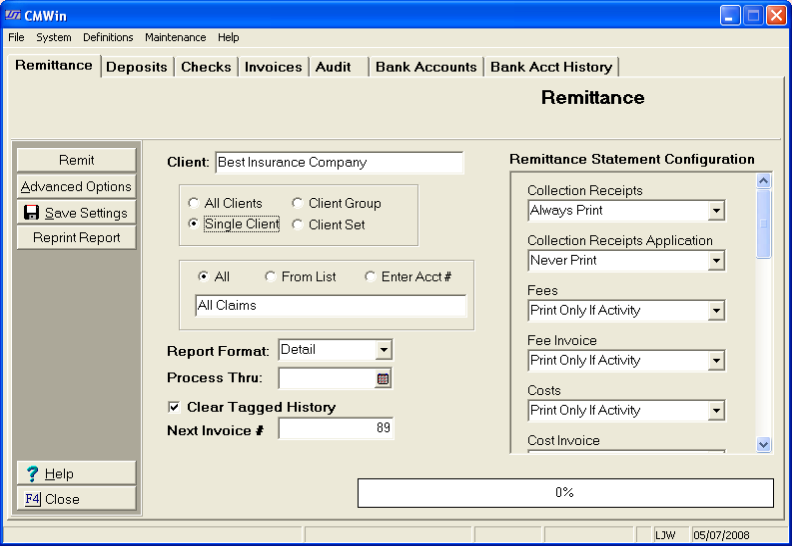
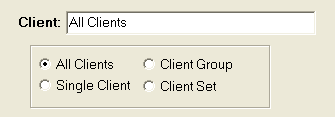
3. To do a remittance on a single client, a group of clients or a client set.
 .
.
4. Select the proper client, client group and client set.
Select the client you would like to process remittance on.
Then select all claims for this client or a single claim by clicking the radio button.
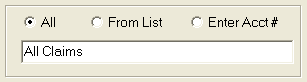
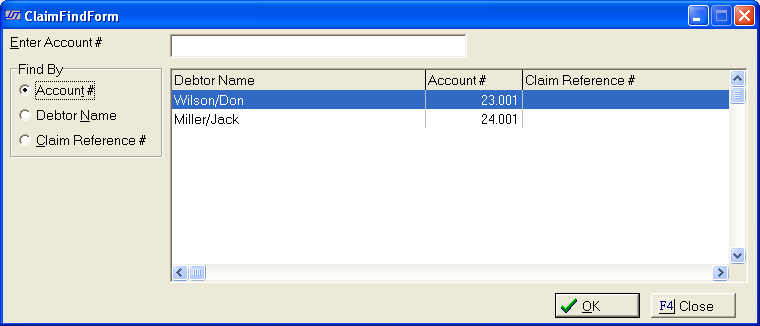
If you pick single claim, a window will pop-up
to allow you to find the debtor by name, account or reference number.
Select
the account and click the  button.
5.
The report
format selection allows you to choose either a detailed or summary format.
Selecting Detail will generate a Remittance Statement, a Remittance Report,
an Invoice and a Remittance Summary Report. Selecting Summary will simply
generate the Remittance Summary Report. Make your selection by clicking
on the drop down arrow beside the  field.
6.
In the
 field, enter the cutoff date for remittance processing.
You can enter this by either typing in the date, or by clicking on the
calendar button
field, enter the cutoff date for remittance processing.
You can enter this by either typing in the date, or by clicking on the
calendar button  and choosing the date. Only transactions with dates prior to or equal
to the selected date will be processed.
and choosing the date. Only transactions with dates prior to or equal
to the selected date will be processed.
Note: Payments posted prior to or equal to the selected date will only be included if their release dates are prior to or equal to the selected date. Processing remittances into the future is not allowed.
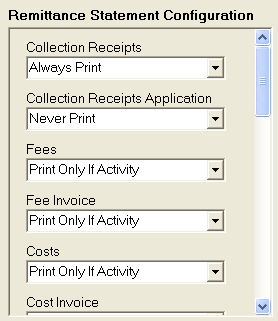
7. On the right hand side of the Remittance Screen is the Remittance Statement Configuration window:
 .
.
This window gives you the ability to configure what you would like printed on your Remittance Statement.
Hint: For your first preview remittance, we recommend your leave the default settings. When you are more comfortable with the remittance process, you can change these settings to fig your needs.
8.
The  field displays the date of your last completed remittance
for this client. Your date may appear blank if a remittance has never
been performed on this client.
field displays the date of your last completed remittance
for this client. Your date may appear blank if a remittance has never
been performed on this client.
9.
The  check box allows you to clear tagged history notes so that
they will no longer appear on reports which list tagged history notes.
check box allows you to clear tagged history notes so that
they will no longer appear on reports which list tagged history notes.
10.
CollectMax
will automatically assign a next invoice number for you based on the next
available invoice number. If you would like to assign a specific invoice
number which does not match default invoice number, enter the specific
number in the  field.
11.Click on
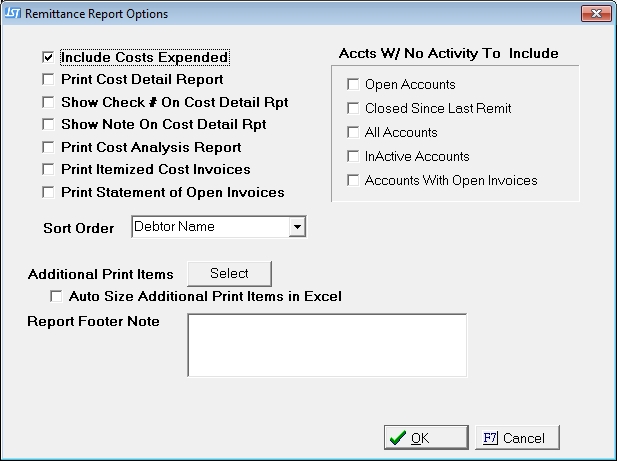
the  button to display the Remittance Report Options screen.
12.
Select from the following options of items to include with this remittance: Check the  box next to the appropriate selections.







13. Select the sort order you would like to have your accounts print on the Remittance Report by choosing Claim Number, Debtor Name or Reference Number from the Sort Order drop down list.
 .
.
14. The Remittance
Report lists the Claim Number, Debtor Name and Reference Account Number
for each account printed on report. If you would like additional items
to print for each account on report, click  . This will open
the Additional Print Items selection window:
. This will open
the Additional Print Items selection window:
 .
.
15.Check the boxes of any selection you would like to have printed for each item on your Remittance Report. These items can be displayed in a vertical stack or in a horizontal string. Select your desired format from the Display Format selection radio buttons:
 .
.
16.Click to return to the Remittance Report Options window.
17.To have the additional print items auto-size in Excel, check this box. If not checked the Excel Remit will do the standard sized column widths and all data may not be seen.

18. You may print a footer note (i.e. Thank You for Your Business) at the end of your Remittance Report. If you would like to have a footer note at the end of your Remittance Report, type your note in the report footer note field.

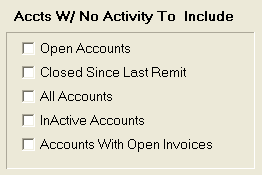
19. You have the option of including accounts with no activity as well Check the appropriate check boxes to choose what type of accounts without activity you would like to include.
20.
Click to save your Remittance Report Options and return to the
Remittance Tab.
21.
If you
have selected any specific settings for
this client and would like to save them for future Remittance Processing
for this client, then click the
 button.
Hint: Save Settings will work for all clients, a client group or a single client.
22.
You are
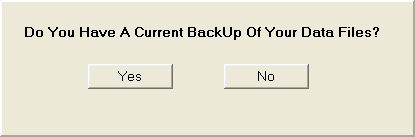
now ready to remit. Click the  button. This will open a
question window where you need to verify you have a current backup of
your data:
button. This will open a
question window where you need to verify you have a current backup of
your data:
 .
.
Note: At this point you need to verify that you do indeed have a backup of your files.
23.
Verify
that you have a current backup of your data and click 
24. You will now be prompted to select a printer option:
 .
.
25.
Click the
 button. This will open the print to box, where you need
to select where you would like your reports to print to.
button. This will open the print to box, where you need
to select where you would like your reports to print to.

26. Select To Screen. When your Windows printer window opens, click OK button to print reports to the printer.
Hint: Printing to screen and selecting to print from there is often a faster option that printing to printer directly.
27. Review your printed items: Remittance Statement, Remittance Report, Remittance Invoice(s), Cost Detail Report, Cost Analysis Report, Remittance Recap Report and Remittance Summary Report. If correct, print the report and exit.
Hint: If the reports are correct, you should print the report because the final remittance process does not produce a report.
28. Once exiting the remittance reports, a spreadsheet preview box will be displayed.

Select the spreadsheet you would like to review, click the  button. Excel will launched the report for review.
If your printed reports and spreadsheets properly reflect your remittance figures, you
are ready to finalize your remittance. CollectMax will prompt you to create
your final remittance transactions at this time. Select from the Create Final Remittance Transactions Now window.
Hint: The preview statement will include an invoice. You must finalize the remittance before your invoice will be added to client's account to be paid. It is possible to print an Invoice during the preview process that never gets finalized so is unavailable for payment.
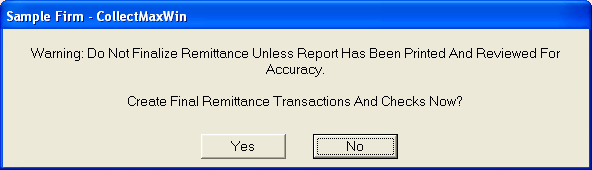
Note: If your reports do not properly reflect your intended remittance figures, you may select No and make any financial transaction adjustments to correct them. At that point you may reprocess your remittance. The remittance process does not print an additional final report.
29.
If the
process has the correct remittance figures, click . The
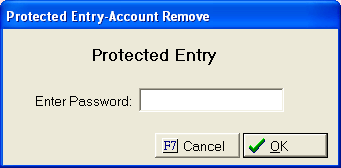
final remittance process is password protected. Enter your CollectMax
password in the Password Protected window:
 .
.
30. A message will pop-up to let you know your remittance process has been finalized and is complete.