 button.
Note: This is only available if your edition is CM560 or the check writing module has been purchased.
1.
From main
menu of CollectMax, click the
button.
2.
Highlight
client and click  .
.
3.
Click the
 tab.
tab.
4.
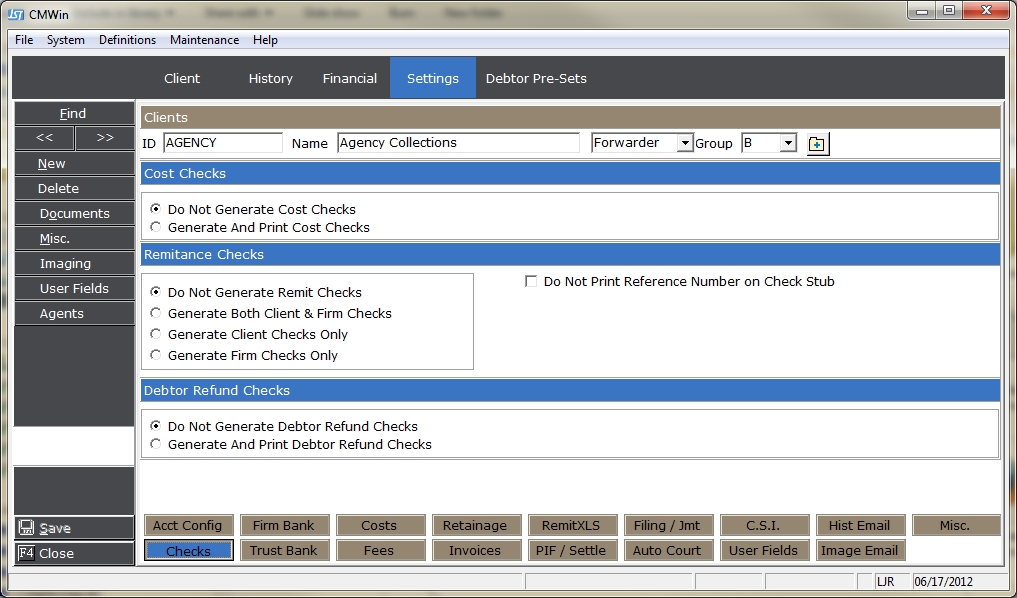
Click the  button. Click
the
button. Click
the  button next to Generate
and Print Cost Checks.
button next to Generate
and Print Cost Checks.
5.
Click the
 button and next click the
  button.
6.
From the
main menu of CollectMax, click
the  button.
7. Find the Debtor Account you need to post a cost payment on.
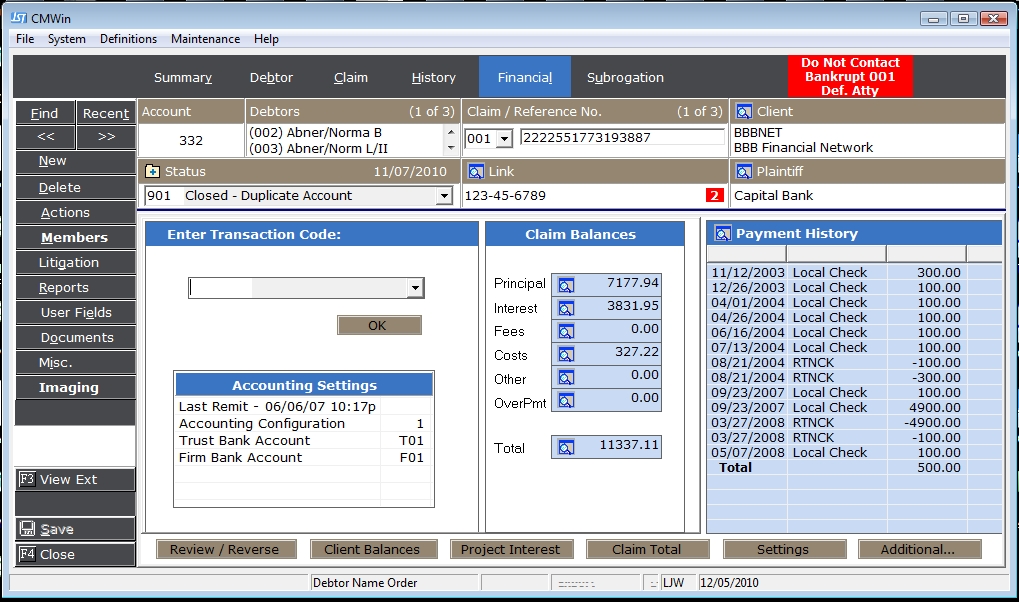
8. Once you have found your account, click on the Financial Tab
9.
In the
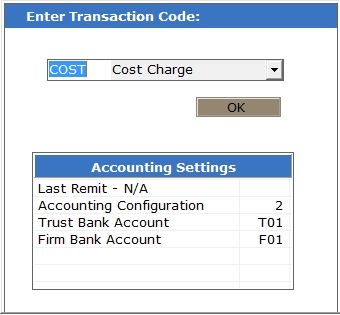
Enter Transaction Code field, type COST
and click the button, or select COST
from the  list:
list:
10.
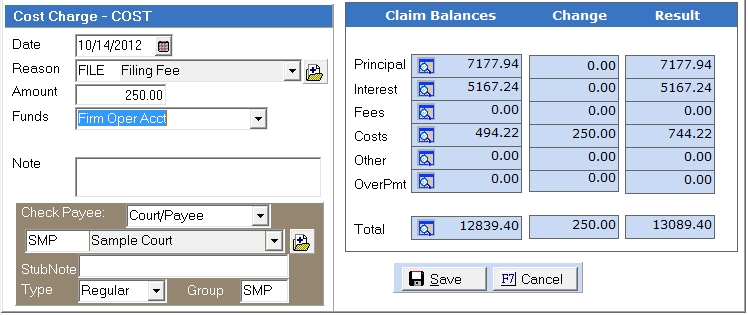
The cost Date  will default to today's date. Edit this field
to back-date your cost transaction.
will default to today's date. Edit this field
to back-date your cost transaction.
11.
Select
a Reason Code from the Reason list. Reason codes represent what the cost is for. If you
need to create a new Reason code, click on  to add a new Reason Code.
12.
Enter the amount of the cost in the  . The amount may already
be filled in by default if an amount has been attached to a Reason code.
. The amount may already
be filled in by default if an amount has been attached to a Reason code.
13. Select which bank account will be funding the cost.
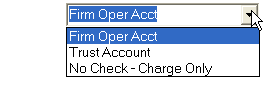 .
.
14. In the Note field, type any notes specific to the posting of this cost.

15. If you already have a court attached to this claim then the Check Payee will automatically fill in here. If not, you will need to enter in Court Payee information.
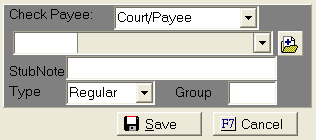
Click the
button to select Court Payee. If
you need to create a new Court Payee click and add new Court Payee.
16.
Click the
button.
17.
Click the
button to return to the main menu screen of CollectMax.