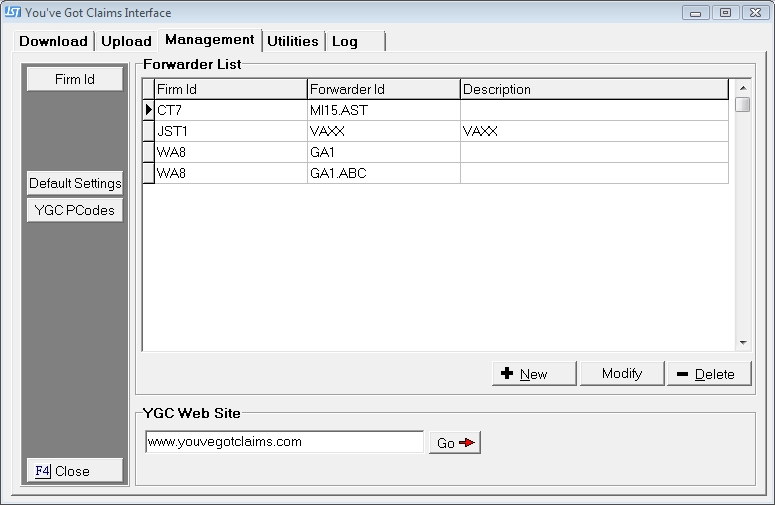
CollectMax allows users to setup some default values for the Forwarder Settings. These will be used by default when adding a new Forwarder but can be changed at any time. The settings control the information that is uploaded to your Forwarders. The default settings should be used to define the most used settings. All these settings can be changed at anytime after the Forwarder account is added.
From the Management Tab in the You've Got Claims Interface, to display the Management Tab.
Click the  to display the YGC Interface Defaults Screen.
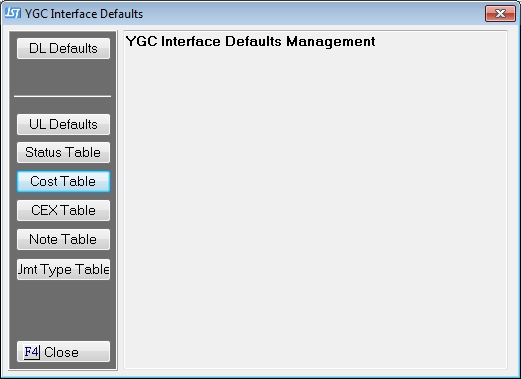
Click the button  to get to the Forwarder ID Defaults Screen. The first tab will be the Type 30.
Select the Financial Transaction Defaults on this screen. If most of your Forwarders typically have the same setting for financial transaction, set the defaults here.
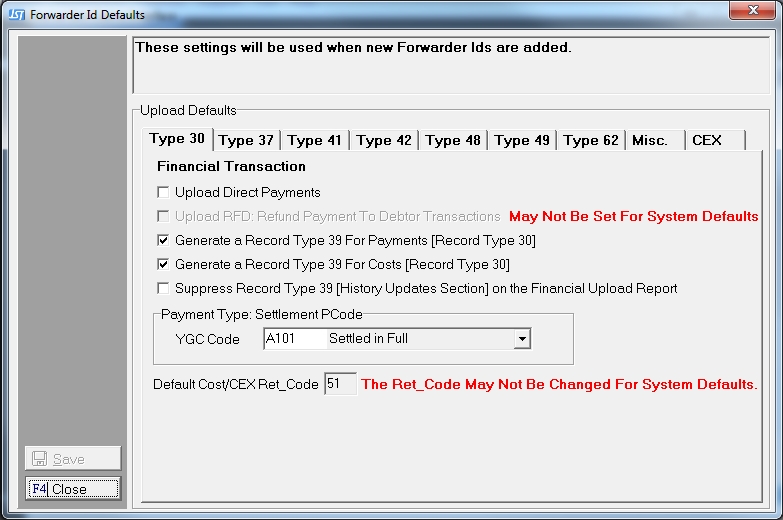
Select from the following options:
Once set, continue on to the other defaults of click the  button to save these options. Remember all these options can be changed at the time the Forwarder is added or any time thereafter. If changed after accounts have been download, the download accounts will not respect the new settings.
If your most of forwarder requires a Caption Legal Names record to uploaded. Select the Type 37 tab and setup the options.
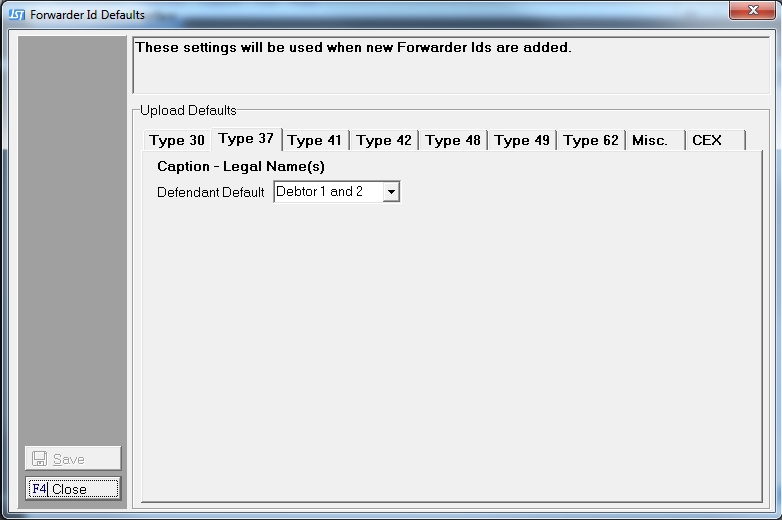
Select from the following options:
Once set, continue on to the other defaults of click the button to save these options. Remember this option can be modified when a new Forwarder is added at the Forwarder Level at anytime. The default setting can be changed at anytime as well. Changing the default setting will not update the existing Forwarders.
If most of your forwarders have the same Suit/Judgment requirements for upload, select the Type 41 Tab and setup the proper settings.
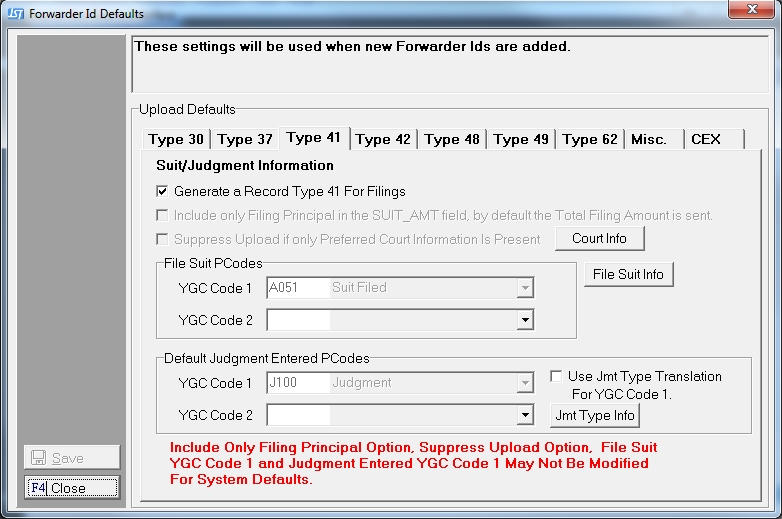
Select from the following options:
Once set, continue on to the other defaults of click the button to save these options. Remember these options can be modified when a new Forwarder is added at the Forwarder Level at anytime. The default setting can be changed at anytime as well. Changing the default setting will not update the existing Forwarders.
If most of your Forwarders have similar Balance/Interest Update requirements for upload, select the Type 42 tab and setup the proper settings.
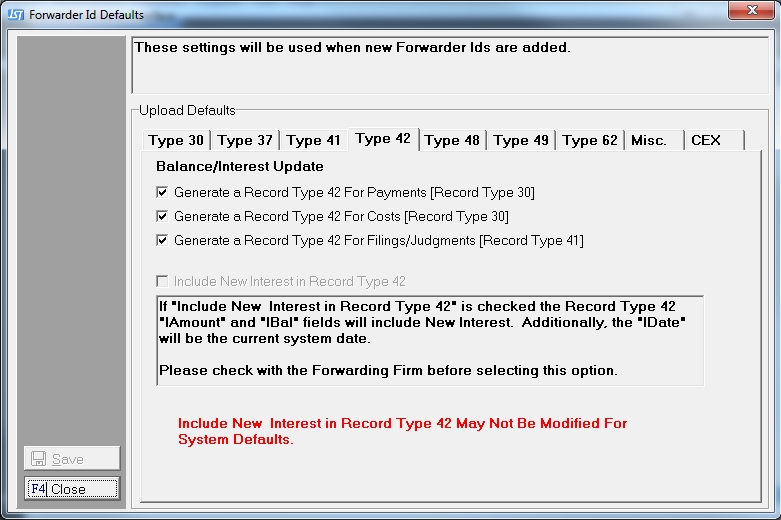
Select from the following options:
Once set, continue on to the other defaults of click the button to save these options. Remember these options can be modified when a new Forwarder is added at the Forwarder Level at anytime. The default setting can be changed at anytime as well. Changing the default setting will not update the existing Forwarders.
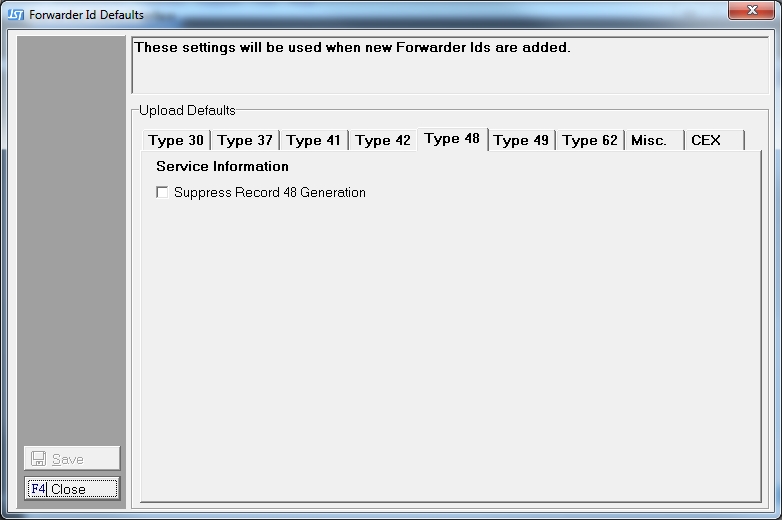
If most of your Forwarders do not need the Service Information record, select the Type 48 tab and setup the proper settings.
Once set, continue on to the other defaults of click the button to save these options. Remember these options can be modified when a new Forwarder is added at the Forwarder Level at anytime. The default setting can be changed at anytime as well. Changing the default setting will not update the existing Forwarders.
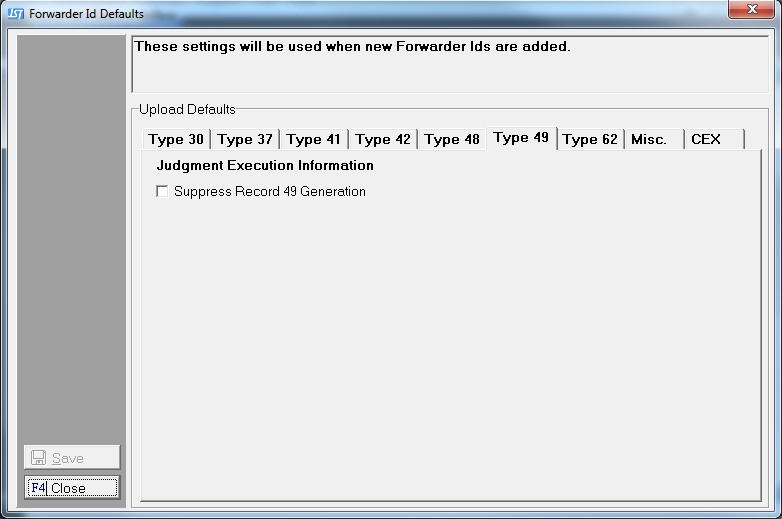
If most of your Forwarders do not need the Judgment Execution Information record, select the Type 48 tab and setup the proper settings.
Once set, continue on to the other defaults of click the button to save these options. Remember these options can be modified when a new Forwarder is added at the Forwarder Level at anytime. The default setting can be changed at anytime as well. Changing the default setting will not update the existing Forwarders.
Type 62 settings cannot be set at the default level but can be set at the Forwarder Level only.
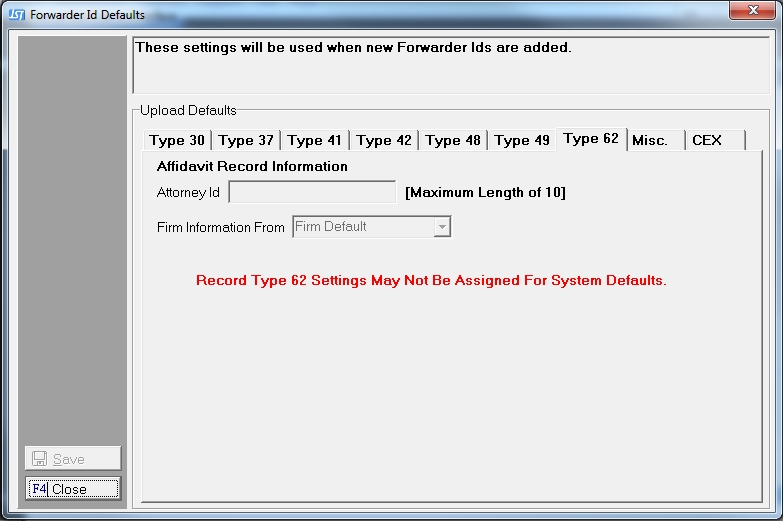
Continue on to the other defaults of click the button to save these options. Remember these options can be modified when a new Forwarder is added at the Forwarder Level at anytime. The default setting can be changed at anytime as well. Changing the default setting will not update the existing Forwarders.
The MISC settings cannot be set at the default level but can be set at the Forwarder Level only.
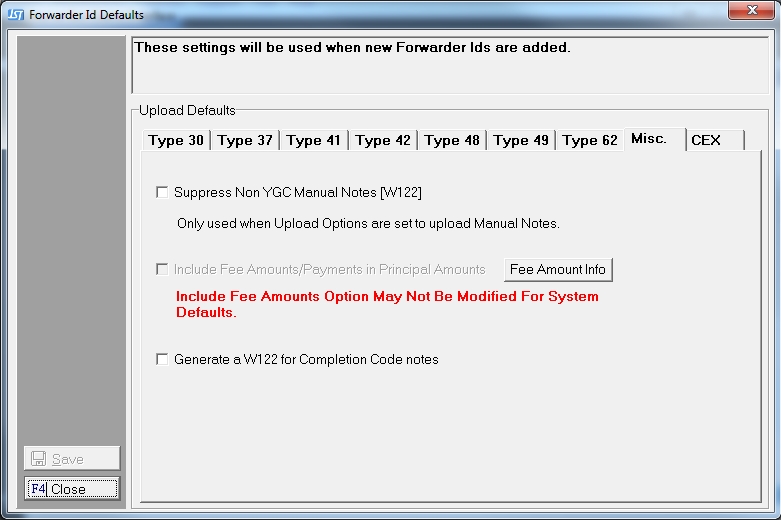
Continue on to the other defaults of click the button to save these options. Remember these options can be modified when a new Forwarder is added at the Forwarder Level at anytime. The default setting can be changed at anytime as well. Changing the default setting will not update the existing Forwarders.
The CEX settings cannot be set at the default level but can be set at the Forwarder Level only.
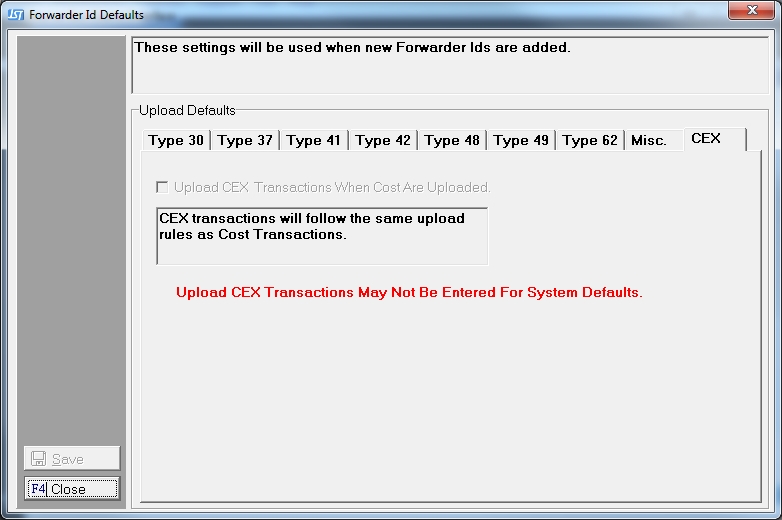
Continue on to the other defaults of click the button to save these options. Remember these options can be modified when a new Forwarder is added at the Forwarder Level at anytime. The default setting can be changed at anytime as well. Changing the default setting will not update the existing Forwarders.
Click the  button to exit the UL Defaults screens.