 button,
then click
the
button,
then click
the  tab
which will take you to the pending deposits screen.
tab
which will take you to the pending deposits screen. This feature unavailable in CM500 and CM550. Please contact JST for information about adding this feature.
From the
Main Screen of CollectMax, click the button,
then click
the tab
which will take you to the pending deposits screen.
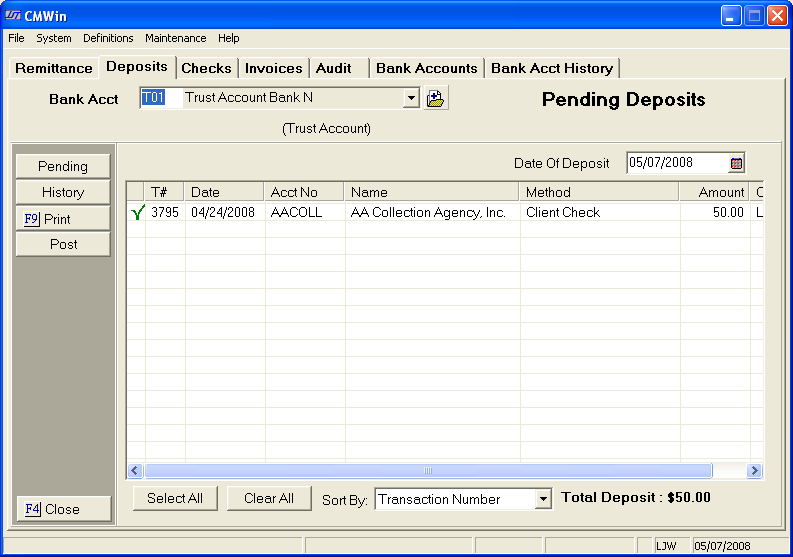
This screen displays pending bank deposits which have yet to be deposited in the bank.
Start by making a Bank account selection
from the  field.
Click the  button to see the
list of bank accounts both firm and trust accounts.
button to see the
list of bank accounts both firm and trust accounts.
The  will take you to the
Bank Accounts code screen.
will take you to the
Bank Accounts code screen.
The table will then reflect any pending deposits for this bank account.
Debtor payment entries. 
Client Credit entries. 
Each entry is automatically be selected  to post with the next deposit. You
may clear all entries by clicking the
to post with the next deposit. You
may clear all entries by clicking the  button or clicking
the
button or clicking
the  button to select all entries. You
may also change the sort order to display in account
number order.
button to select all entries. You
may also change the sort order to display in account
number order.  To
select this option, click in the
To
select this option, click in the  box.
box.
After you have selected the entries you would
like to post or record as a deposit, click the  button, select
printer options,
button, select
printer options,  to get a deposit slip report.
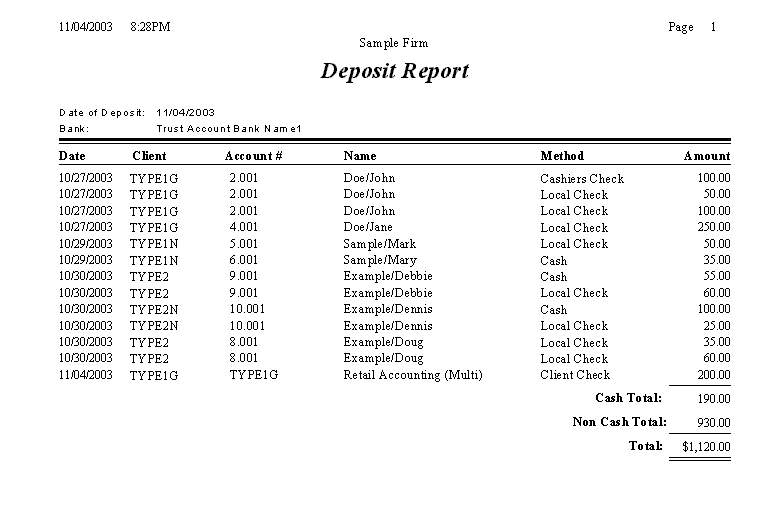
After printing your deposit slip you are
ready to post your deposit record, first select the date of the deposit
 . The date will default to todays date. However, you may change
the date by typing the correct date in the field in MM/DD/YYYY
format or clicking the
. The date will default to todays date. However, you may change
the date by typing the correct date in the field in MM/DD/YYYY
format or clicking the  and selecting a date. Click the
  button. A
pop-up confirmation window
will appear asking if you would like to post these items.
button. A
pop-up confirmation window
will appear asking if you would like to post these items.
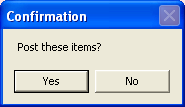
Click the  button to post the
entries into the Deposit History.
button to post the
entries into the Deposit History.
Click the  to cancel the posting
processing and post at a later time.
to cancel the posting
processing and post at a later time.
To exit the pending deposits screen, click
the  to go to the deposits history screen, click the
  to return to the main screen of CollectMax.