 on the CollectMax menu bar at the top of the window.
1.
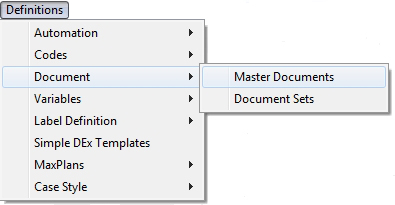
Click on the CollectMax menu bar at the top of the window.
2. Select Document, Master Documents from the menu.
3.
Click the
 button on the left panel to create a new document.
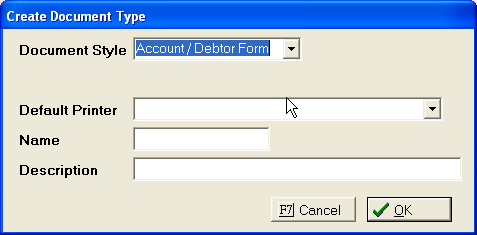
4. In the Create Document Type window, select the document style from the drop down list by clicking on the down arrow. Choose Account/Debtor Form for a standard debtor letter.
Note: Selecting Legal Form will display the document on the appropriate Litigation Screen only.
5.
Select
the appropriate Default Printer
from the  list
list
.
6. Give your document a Name.
 .
.
Note: Do not use any slashes, quotes or special characters in your document name.
7. Type in a description for your document in the Description field.

8.
Click the
 button.
9. Word will open automatically to a blank document. You are now ready to create your document in Word.
10.
Type your document text into the document. When you come to a position
in your document where you would like to insert a CollectMax variable,
click on the key beside the  field to
list all the variables in CollectMax. Note that you can type the first
letter in your variable name and the list will refresh with the first
item starting with your letter. When the variable appears in the text
box, click
field to
list all the variables in CollectMax. Note that you can type the first
letter in your variable name and the list will refresh with the first
item starting with your letter. When the variable appears in the text
box, click  .
.
11.
Continue entering your text and inserting variables until you have completed
the creation of your Word document. At this point you may click on
your Word toolbar and you will
return to CollectMax with your new document created.
on
your Word toolbar and you will
return to CollectMax with your new document created.
12.
Now that you have created your document, it is an excellent time to establish
properties for your new document. These
properties are available to simplify procedures associated with document
generation. Highlight
your new document from the document list and click the  button
on the left panel.
button
on the left panel.