 button.
CollectMax allows users to post multiple filings per claim and account. The following are instruction on how to add a single filing.
1. From
the main menu of CollectMax click the button.
2. Find the Debtor Account that needs the court filing information added.

3.
From any Debtor Tab, click the
 arrow and select the proper claim. Each Account can have multiple claims and each claim can have multiple filings attached.
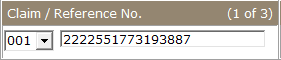
Note: Selecting the proper claim before entering the filing is essential. The proper claim cannot be selected from the Litigation Screen and once a filing is entered, you cannot move the filing to another claim without deleting and re-entering it.
4.
On the
Clam Tab, click the  button in the Litigation area
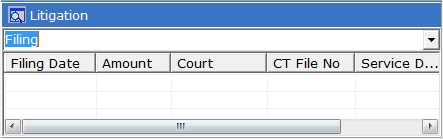
or
click the  button on the left to display the Litigation Legal Activity Screen.
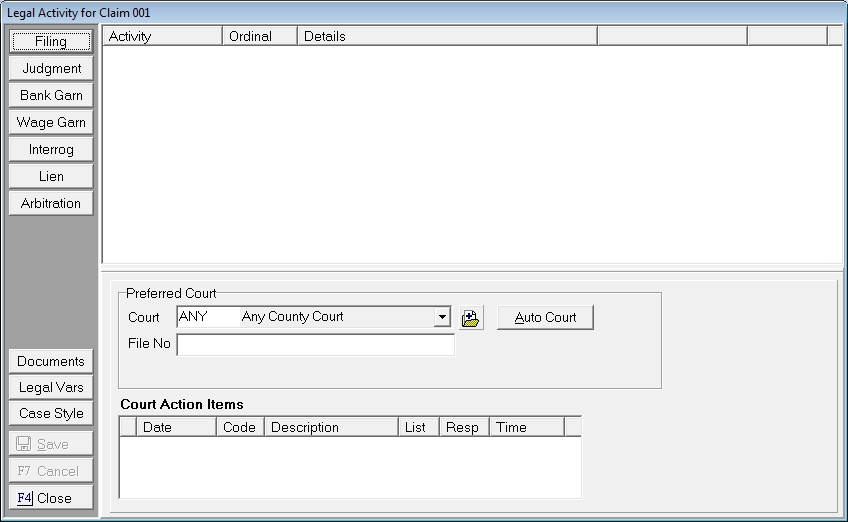
5. Click the  button to display the Filing Activity Screen
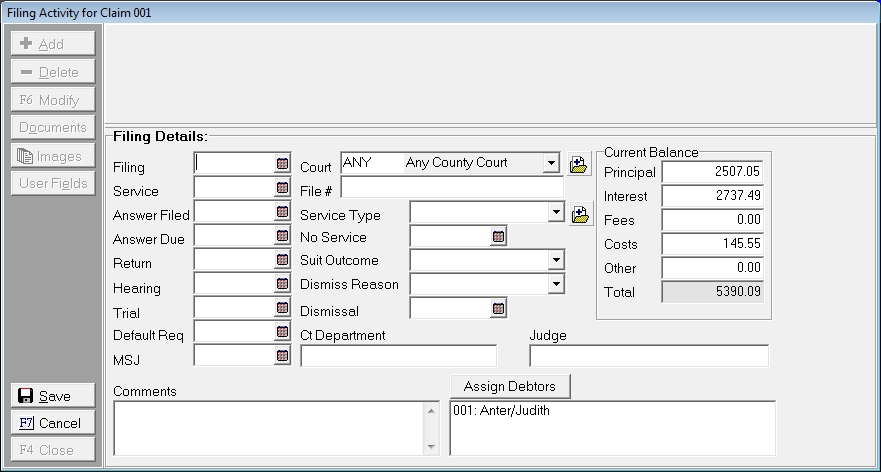
6. If this is the first filing for this claim, fill in the filing date by typing in the date in MM/DD/YYYY format or
click the  to open
up the calendar to select the date. If a filing has already been entered on this claim, click the
to open
up the calendar to select the date. If a filing has already been entered on this claim, click the  button and then fill in the Filing Date.

7. Continue to enter the following file with the data that is available:
8. Comments may be entered in the comment section. A variable, FILINGCMTS, is available to include this information on document and simple data extractions.
9.The Preferred Court will automatically be pulled from the Litigation Screen into the Court field. If Preferred Court is not the proper court for this filing, select
the appropriate court by clicking on the button and picking
the court from the list or click the  button and
add a court .
button and
add a court .

If the Court does not match the Preferred Court, the Court Code will appear in Bold and/or in Red on the Litigation Screen.
Note: The Preferred Court is uploaded for Network Interface Accounts. If you add a different Court on the Filing Screen and want it uploaded, be sure an update the Preferred Court.
10.The Preferred Court File Number will automatically be pulled from the Litigation Screen into the File # field. If the Preferred Court File Number is not the proper file number for this filing, enter the correct number.

If the File # does not match the Preferred Court File Number, the File # will appear in Bold and/or in Red on the Litigation Screen.
Note: The Preferred Court File Number is uploaded for Network Interface Accounts. If you add a different File # and want it uploaded, be sure an update the Preferred Court File Number.
11.If this is the first filing for this claim, the debtor's
current balance with interest through today's date will be imported into the Current Filing Balance section. If this is not the first filing for this claim, click the  button add another filing.
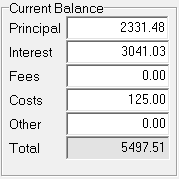
CollectMax imports the current balance assuming that you will file for the whole balance. If this is not the case, please make adjustments to the current balance section. Any modification to these amounts will not adjust the claim balance.
12. Continue to enter the following data if available:
If you do not have all the information at this time, you can enter this information at a later time.
13. Assign the debtor or debtors that are party to this filing. If there is only one debtor on the account, CollectMax will automatically assign the debtor to the filing. If there is more than one debtor on the account, Click the  button to display the Assign Debtor Screen.
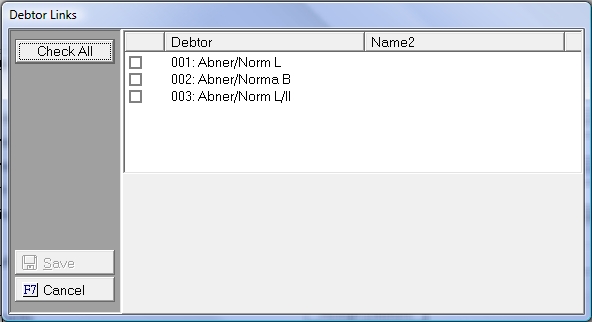
Click the  box next to the debtors who are a party to this Filing. No debtor have to be attached to save the filing.
14.
Click the
 button.
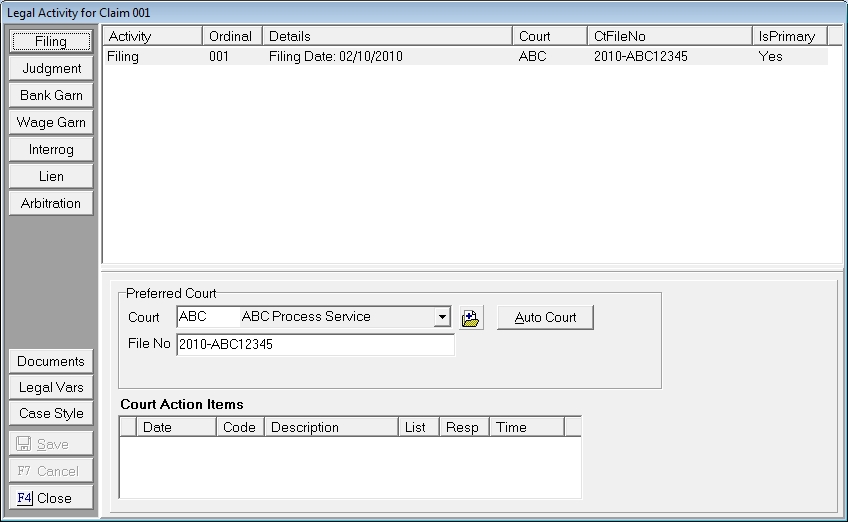
If this is the first filing entered on a claim, it will be automatically considered to be the Primary Filing. It is the primary filing that is used for uploading on Network Interface Accounts and will use the customary variables unless another filing has been selected. See Litigation Variables.
For Information on changing the Primary Filing, see Setting the Primary Filing.
15.
Click the
 button.
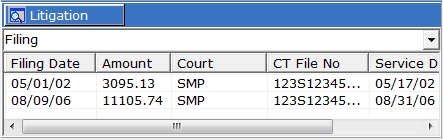
16 After adding Filing Information, these fields will be filled in on the claim screen.
17. To additional information to or modify information on the Filing, see Modifying a Court Filing.