 button,
then click
the
button,
then click
the  tab
which will take you to the pending deposits screen, click the
tab
which will take you to the pending deposits screen, click the  button to display the deposit history screen.
Note: This feature unavailable in CM500 and CM550. Please contact the Sales Department for information on obtaining this or another feature.
From the
Main Screen of CollectMax, click the button,
then click
the tab
which will take you to the pending deposits screen, click the button to display the deposit history screen.

This screen displays all deposits posted for the selected bank account.
Select the
bank account from the  field. Click
the
field. Click
the  button to see the list of bank accounts both firm
and trust accounts. The
button to see the list of bank accounts both firm
and trust accounts. The
 will take you to the Bank Accounts code screen.
The screen will display a line item for each deposit for the bank account with the Deposit number, Date of the deposit, Bank Account code, Amount of deposit, and the Reconcile date.
To have the
screen display a list of deposits posted on a certain day or dates, add
the date in the  field in the MM/DD/YYYY
format or click the
field in the MM/DD/YYYY
format or click the  button to select a date and add a
date in the
button to select a date and add a
date in the  field. Leave
dates blank for a complete list of deposits. Select
same date in the start and end for all deposits posted on a certain date.
field. Leave
dates blank for a complete list of deposits. Select
same date in the start and end for all deposits posted on a certain date.
To print
a list of all the deposits for this account, click the  button,
choose the printer option
button,
choose the printer option  .
.
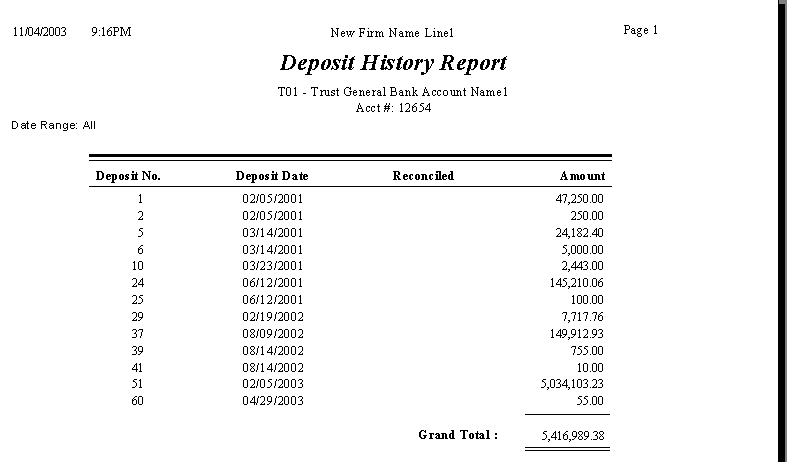
The Deposit History report will list all deposits for this bank account by number including the date and the amount. If you have selected a date range for display, this report will only print those items.
To view a
deposit in detail, click on the line item you wish to view to select it
. Then
click on  button to view the deposit history detail screen.
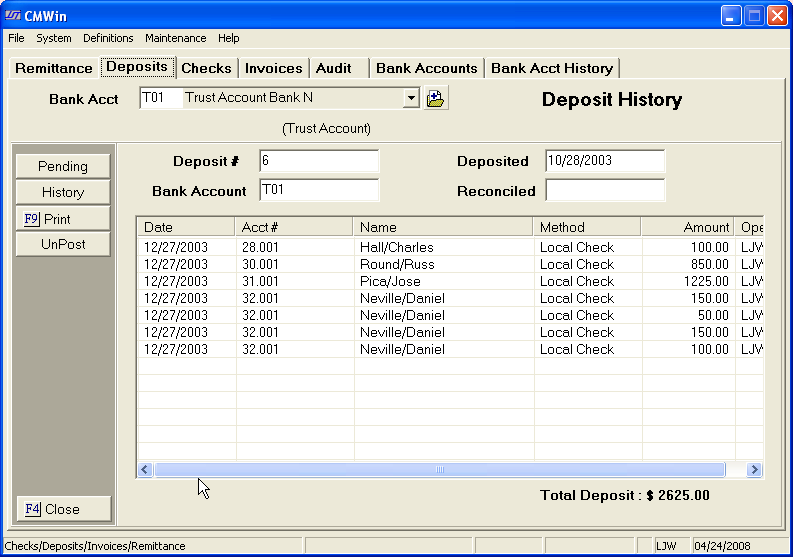
The Deposit History Detail screen itemizes each transaction which make up the overall deposit.
To print a detailed deposit report, click
the button, choose the printer option .
A
Deposit Report will print.

This report will print a list of all items included in the deposit, with the date the transaction was posted, the debtor account number and name, the method of payment and the amount.
If a deposit
is posted to the Deposit History in error or must be un-posted, it can
be "moved" from the Deposit History "back" to Pending
Deposits by selecting the  button. You
will be asked to confirm this selection, a pop-up confirm window will
appear.
button. You
will be asked to confirm this selection, a pop-up confirm window will
appear. 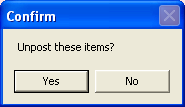
Click the
 button to continue the process of moving the deposit
back to pending. Or
click the
button to continue the process of moving the deposit
back to pending. Or
click the  button to cancel the process.
To exit the deposit detail screen, click
either the button to return to the deposit history screen,
the  to return to the pending deposits screen or the
  to exit to the main screen of CollectMax.